

How to Create a Content Page in Sanity Studio
This step-by-step tutorial will guide you through creating a content page (like About Us, Contact, Privacy Policy, etc.) in Sanity Studio for the Popay POS website.
What you'll create:
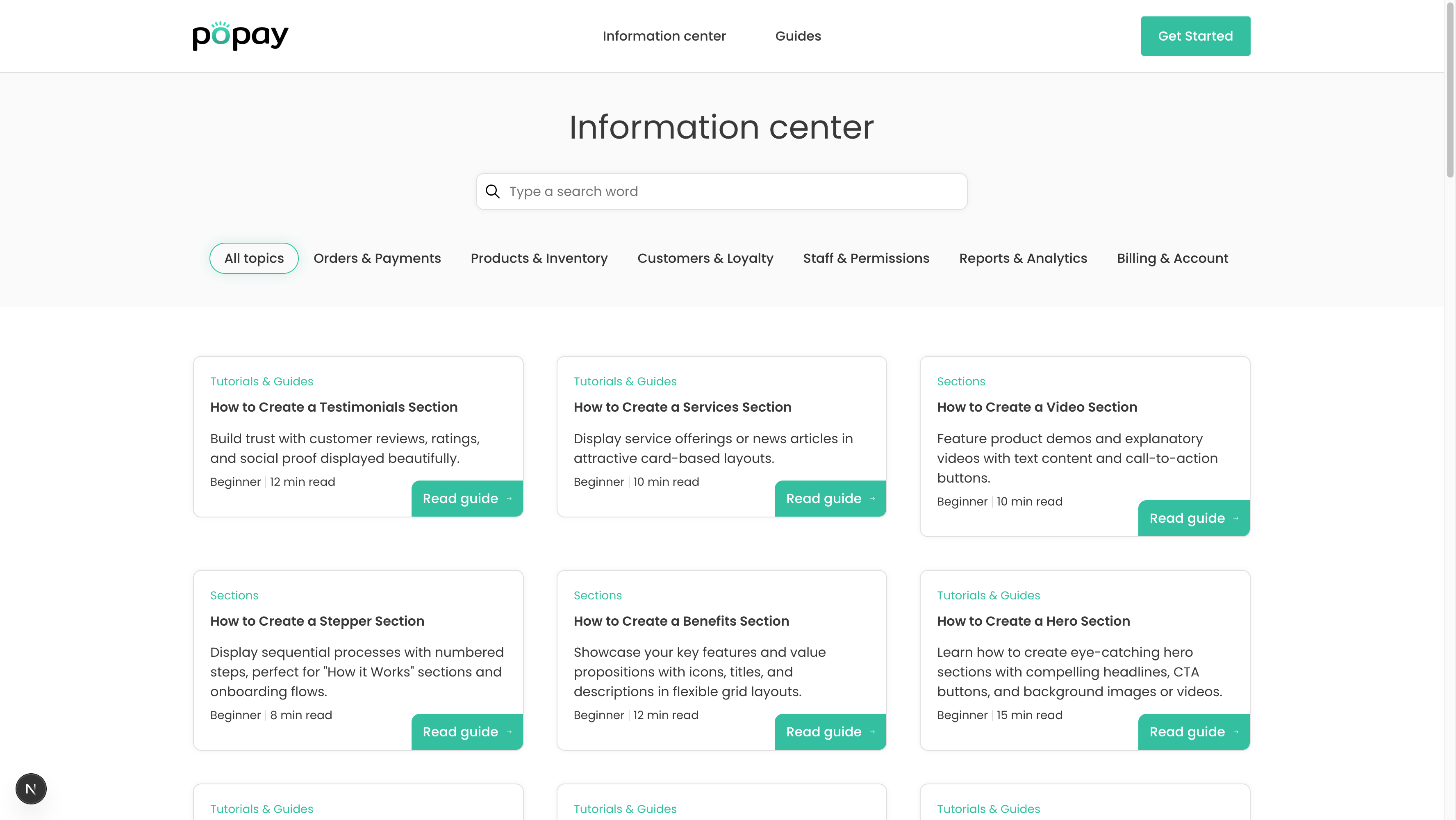 An example content page (About Us, Contact, etc.) as it appears on your website
What is a Content Page?
A Content Page is used for informational content on your website, such as:
- About Us
- Contact Information
- Privacy Policy
- Terms of Service
- Help & Support
- Company Information
- Team/Careers pages
Unlike landing pages which focus on conversion and have multiple promotional sections, content pages typically have:
- Simple, text-focused layout
- Information delivery focus
- Navigation menu presence
- Less promotional content
Prerequisites
- Access to Sanity Studio at https://popay.sanity.studio/
- Logged in with proper credentials
Step 1: Navigate to Pages Section
- Open Sanity Studio in your browser
- In the left sidebar, click on Pages
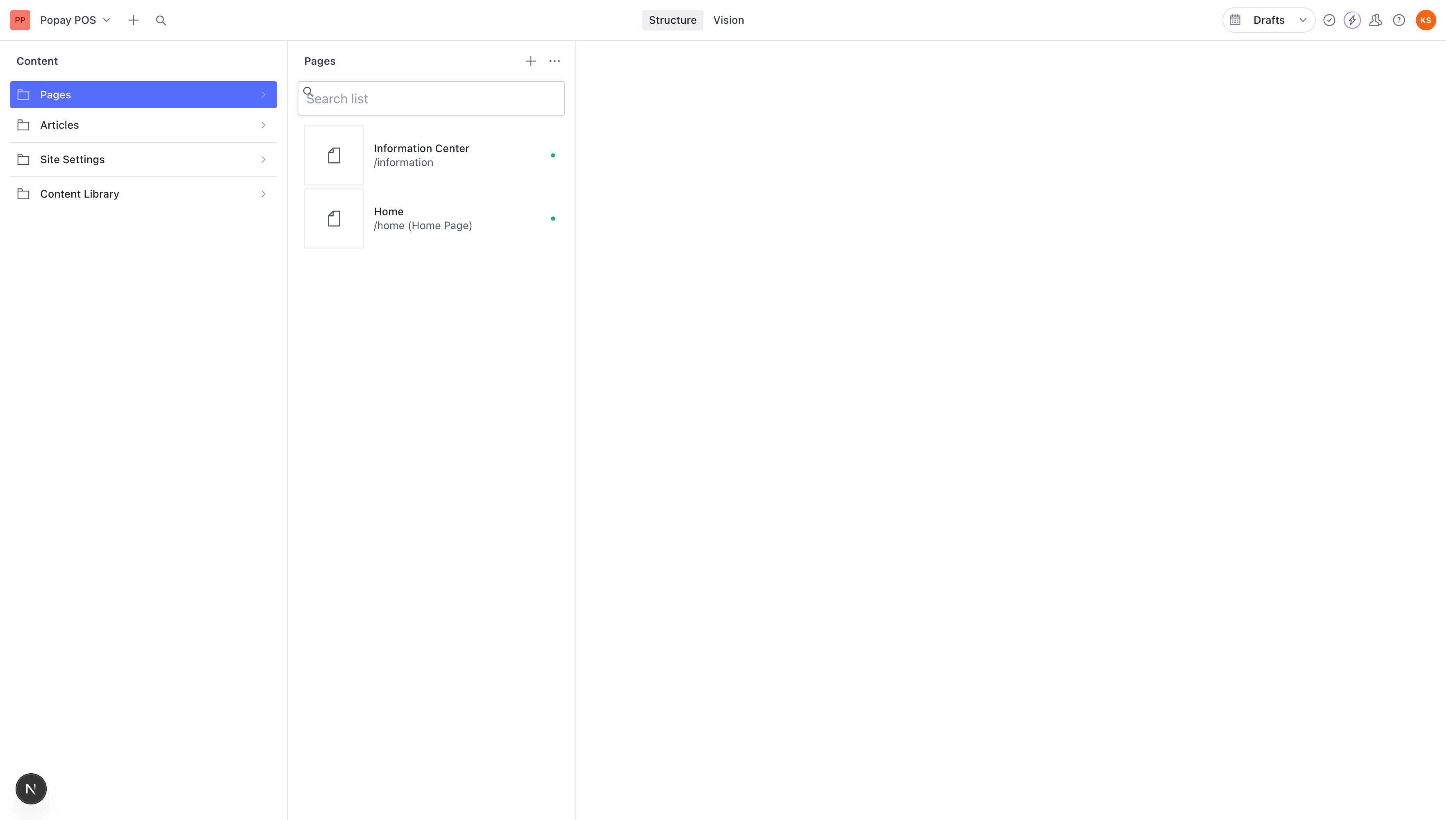
You'll see a list of all existing pages in your website.
Step 2: Create a New Content Page
- Click the + icon next to "Pages" at the top of the middle panel
- A menu will appear with three options:
- Page - Basic page template
- Home Page - Landing page template (for promotional pages)
- Content Page - Information-focused template
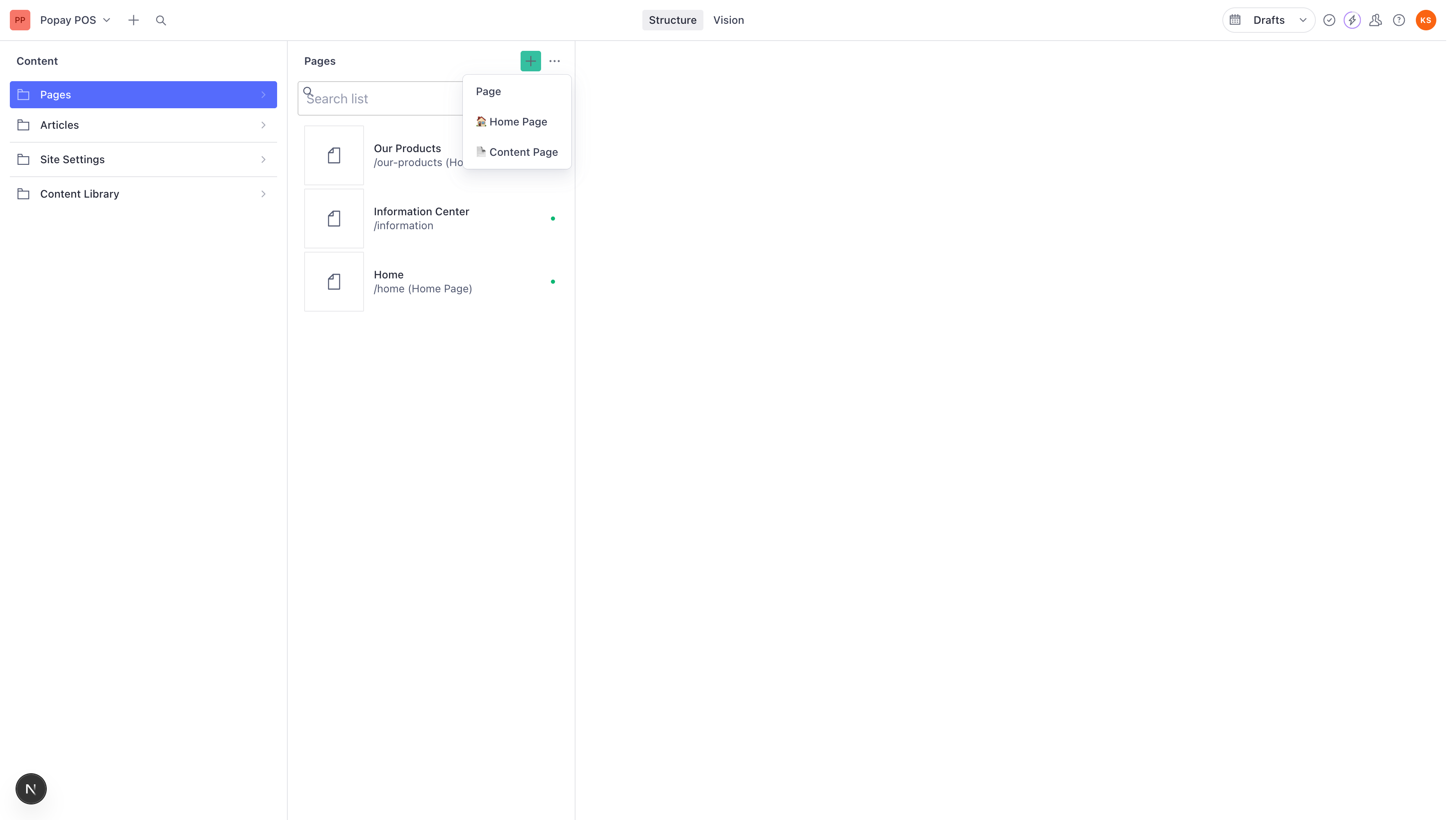
- Click on Content Page for informational pages
When to choose Content Page vs Home Page:
- Content Page → About Us, Contact, Privacy Policy, Terms, Support
- Home Page → Product pages, Marketing campaigns, Feature showcases
Step 3: Understanding the Content Page Form
After clicking "Content Page", you'll see a form with these fields:
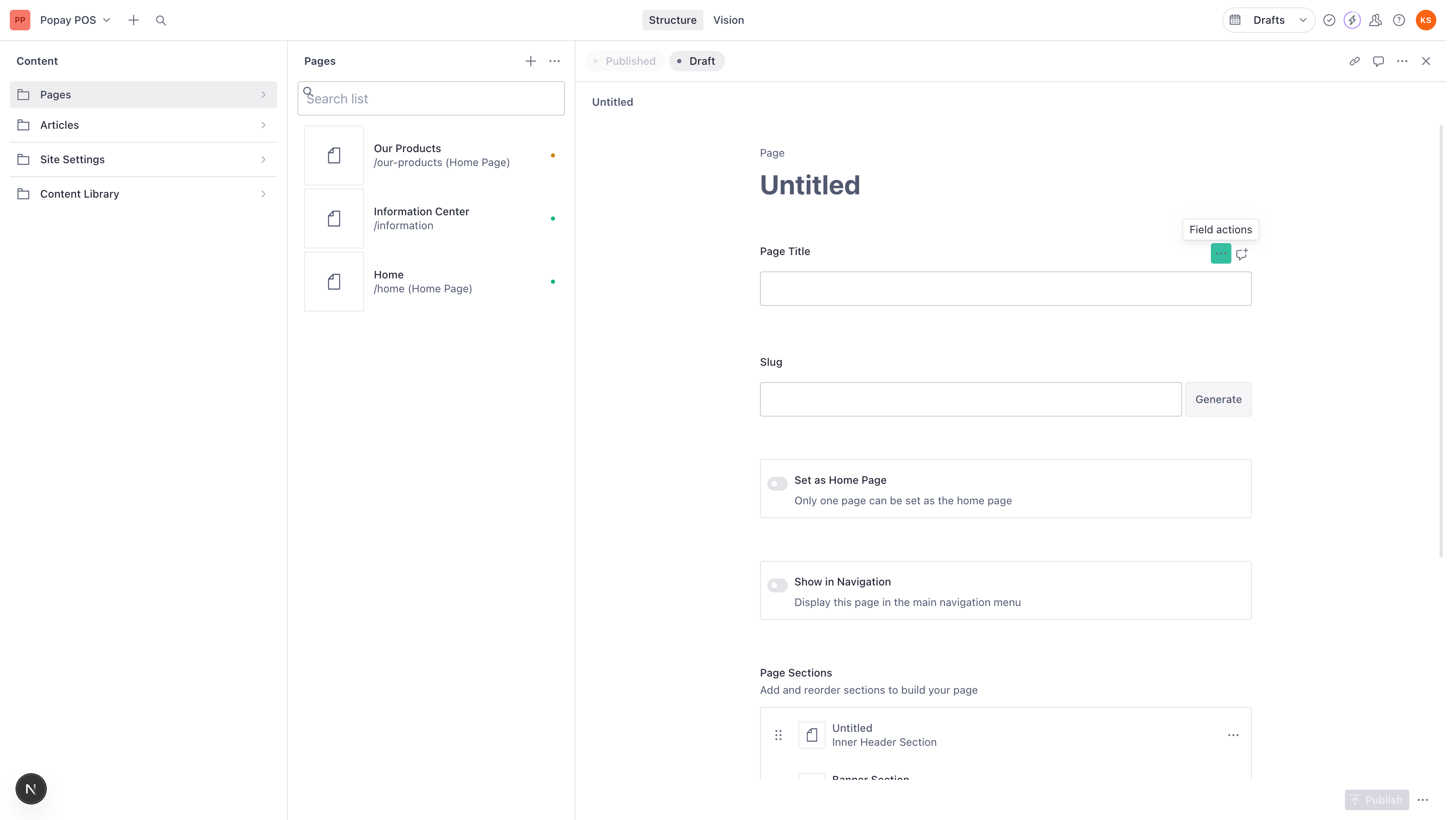
Basic Information
- Page Title - The main title of your page (e.g., "About Us")
- Slug - URL path for the page (e.g., "about-us")
Navigation Settings
- Show in Navigation - Display this page in the main menu
- Navigation Label - Custom text for menu (if different from title)
- Navigation Order - Position in menu (lower numbers first)
- Is Submenu Item - Make this a dropdown item under another page
- Open in New Tab - Opens link in new browser tab
Content Sections
- Page Sections - Add content sections appropriate for content pages
- Typically simpler sections focused on information delivery
SEO
- SEO Settings - Meta tags, descriptions, and search optimization
Step 4: Enter Page Title
- Click in the Page Title field
- Type your page title
Examples:
- "About Popay POS"
- "Contact Us"
- "Privacy Policy"
- "Terms of Service"
- "Help Center"
The title should clearly describe the page's purpose.
Step 5: Generate Page Slug
- After entering the title, click the Generate button next to the Slug field
- The system will automatically create a URL-friendly slug
Examples:
- Title: "About Us" → Slug: "about-us" → URL:
yoursite.com/about-us - Title: "Privacy Policy" → Slug: "privacy-policy" → URL:
yoursite.com/privacy-policy - Title: "Contact Us" → Slug: "contact" → URL:
yoursite.com/contact
Step 6: Configure Navigation Settings
Show in Navigation
✅ Check this if you want the page in your main menu
Most content pages should be in navigation:
- About Us ✅
- Contact ✅
- Help Center ✅
Some pages might not need menu visibility:
- Privacy Policy ❌ (linked in footer instead)
- Terms of Service ❌ (linked in footer instead)
Navigation Label
- Leave empty to use Page Title
- Or customize: Title: "About Popay POS" → Label: "About"
Navigation Order
Set the position in your menu:
- Home10
- Products20
- About30
- Contact40
- Help50
Lower numbers appear first (left to right).
Is Submenu Item
Check this to create a dropdown menu structure:
Example:
Resources (parent)
  ├─ Help Center (submenu item)
  ├─ Documentation (submenu item)
  └─ Tutorials (submenu item)
Open in New Tab
Check this for pages that should open in a new window:
- External resources
- PDF documents
- Partner sites
Step 7: Adding Content Sections
Content pages typically use different sections than landing pages.
Click Add item... in the Page Sections area to see available sections.
Recommended Sections for Content Pages
For About Us Pages:
- Inner Header Section - Page title banner
- Services Section - Company services/values
- Result Section - Company statistics
- Testimonials Section - Client feedback
- Call to Action - Join/Contact us
For Contact Pages:
- Inner Header Section - "Get in Touch" banner
- Banner Section - Contact information
- (Custom contact form if integrated)
For Privacy/Terms Pages:
- Inner Header Section - Page title
- Content with Sidebar Navigation - Long-form text with navigation
- (Or use simple text-based sections)
For Help/Support Pages:
- Inner Header with Search - Searchable header
- Information Tabs Section - Categorized help topics
- Information Center Section - Help articles grid
- FAQ Section - Common questions
Step 8: Configuring Sections for Content Pages
Inner Header Section
Perfect for content page headers:
- Add Inner Header with Search or simple header
- Configure:
- Heading: Your page title or tagline
- Description: Brief page description
- Background: Optional background image
- Search: Enable for help/documentation pages
Content with Sidebar Navigation
Ideal for long-form content:
- Add Content with Sidebar Navigation
- Configure:
- Main Content: Your article/information (rich text)
- Sidebar Links: Table of contents or related pages
- Great for: Privacy Policy, Terms, Documentation
Banner Section
For important notices or contact info:
- Add Banner Section
- Configure:
- Message: Your notice or information
- CTA Button: Optional action button
- Style: Info, Warning, or Promotional
Step 9: Writing Content with Rich Text Editor
Content pages often need longer text content. Use the WYSIWYG editor:
Formatting Options
- B - Bold text for emphasis
- I - Italic text for subtle emphasis
- Code/monospace for technical terms</>- U - Underline for highlighting
- S - Strikethrough for corrections
Lists
- Bullet points for unordered lists
- Numbered lists for sequential steps
Links
- Highlight text → Click link icon → Enter URL
- For internal pages:
/about-us - For external links:
https://example.com
Full-Screen Mode
Click the expand icon (⛶) for distraction-free writing.
Step 10: Structuring an About Us Page
Example structure:
-
Inner Header Section
- Heading: "About Popay POS"
- Description: "Revolutionizing point-of-sale solutions since 2020"
-
Services Section (Company Values)
- Service 1: Innovation
- Service 2: Customer Focus
- Service 3: Reliability
-
Result Section (Statistics)
- 10,000+ Active Users
- 50+ Countries
- 99.9% Uptime
-
Testimonials Section
- Customer success stories
-
Call to Action
- "Join Our Team" button
Step 11: Structuring a Contact Page
Example structure:
-
Inner Header Section
- Heading: "Get in Touch"
- Description: "We're here to help"
-
Banner Section (Contact Info)
- Email: [email protected]
- Phone: +1 (555) 123-4567
- Address: 123 Main St, City, Country
-
Call to Action
- "Email Us" button
- Link to support form
Step 12: Structuring a Help Center Page
Example structure:
-
Inner Header with Search
- Heading: "How can we help?"
- Search bar: Enable
-
Information Tabs Section
- Tab 1: Getting Started
- Tab 2: Features
- Tab 3: Troubleshooting
-
Information Center Section
- Grid of help articles
- Links to detailed guides
-
FAQ Section
- Common questions and answers
Step 13: Configuring SEO Settings
Expand SEO Settings at the bottom of the page:
For Content Pages:
About Us:
- Meta Title: "About Popay POS - POS Solutions Provider"
- Meta Description: "Learn about Popay POS, our mission, and how we're transforming retail with innovative point-of-sale solutions."
Contact:
- Meta Title: "Contact Popay POS - Get in Touch"
- Meta Description: "Contact Popay POS support team. Email, phone, and address information. We're here to help with your POS needs."
Privacy Policy:
- Meta Title: "Privacy Policy - Popay POS"
- Meta Description: "Read Popay POS privacy policy. Learn how we collect, use, and protect your personal information."
SEO Best Practices:
- Use descriptive, keyword-rich titles
- Write unique descriptions (don't duplicate)
- Keep titles under 60 characters
- Keep descriptions under 160 characters
- Include brand name in title
Step 14: Publishing Your Content Page
- Review all sections and content
- Check that navigation settings are correct
- Verify SEO settings are complete
- Click the Publish button (bottom-right)
Your content page is now live!
Step 15: Adding to Footer (Optional)
Some content pages (Privacy, Terms) are typically linked in the footer rather than main navigation:
- Uncheck Show in Navigation on the page
- Go to Site Settings in the left sidebar
- Navigate to Footer Settings
- Add your page link to the footer menu
- Publish Site Settings
Common Content Page Examples
1. About Us Page
Title: About Us
Slug: about-us
Navigation: Yes (Order: 30)
Sections:
- Inner Header Section
- Services Section (values/mission)
- Result Section (company stats)
- Testimonials Section
- Call to Action
2. Contact Page
Title: Contact Us
Slug: contact
Navigation: Yes (Order: 40)
Sections:
- Inner Header Section
- Banner Section (contact details)
- Call to Action (email/form)
3. Privacy Policy
Title: Privacy Policy
Slug: privacy-policy
Navigation: No (add to footer instead)
Sections:
- Inner Header Section
- Content with Sidebar Navigation
4. Help Center
Title: Help Center
Slug: help
Navigation: Yes (Order: 50)
Sections:
- Inner Header with Search
- Information Tabs Section
- Information Center Section
- FAQ Section
5. Careers Page
Title: Careers
Slug: careers
Navigation: Yes (Submenu under "About")
Sections:
- Inner Header Section
- Services Section (open positions)
- Testimonials Section (employee testimonials)
- Call to Action (apply now)
Tips and Best Practices
Content Writing
- Write in a clear, professional tone
- Use headings to organize content
- Keep paragraphs short (3-4 sentences)
- Use bullet points for lists
- Include relevant links
Navigation Organization
- Group related pages in dropdowns
- Keep main menu simple (5-7 items max)
- Use descriptive, concise labels
- Consider user journey
Content Structure
- Start with clear page title
- Provide table of contents for long pages
- Use visual breaks (sections)
- End with clear call-to-action
Accessibility
- Use descriptive link text (not "click here")
- Ensure good contrast
- Write alt text for images
- Use semantic headings (H1, H2, H3)
Troubleshooting
Page not showing in navigation
- Check Show in Navigation is enabled
- Verify page is published (not draft)
- Check Navigation Order doesn't conflict
- Refresh the website
Submenu not working
- Ensure parent page exists
- Check Is Submenu Item is enabled
- Verify Navigation Order is set
- Parent and child must both be published
Content not displaying
- Verify sections have content
- Check page is published
- Clear browser cache
- Check for validation errors
Differences: Content Page vs Landing Page
| Feature | Content Page | Landing Page |
|---|---|---|
| Purpose | Information delivery | Marketing/conversion |
| Sections | Simple, text-focused | Rich, promotional |
| Navigation | Always in menu | Sometimes hidden |
| Call-to-Actions | Minimal, subtle | Prominent, multiple |
| Length | Often longer | Usually concise |
| Examples | About, Contact, Privacy | Products, Campaigns, Features |
Quick Reference
| Action | Steps |
|---|---|
| Create Content Page | Pages → + icon → Content Page |
| Add to Navigation | Check "Show in Navigation" |
| Create Submenu | Check "Is Submenu Item" |
| Add to Footer | Site Settings → Footer Settings |
| Write Long Content | Use "Content with Sidebar Navigation" |
| Add Help Articles | Use "Information Center Section" |
Next Steps
- Learn how to Create Articles for the Information Center
- Review the Content Creator Guide for more features
- Check Creating Landing Pages for promotional pages
Need More Help?
- Check existing content pages for examples
- Contact your technical team for assistance
- Visit Sanity Documentation
Last Updated: 2025-11-18 Tutorial Version: 1.0