

How to Create a Stepper Section
A Stepper Section displays a sequential process with numbered steps, perfect for "How it Works" or onboarding flows.
What you'll create:
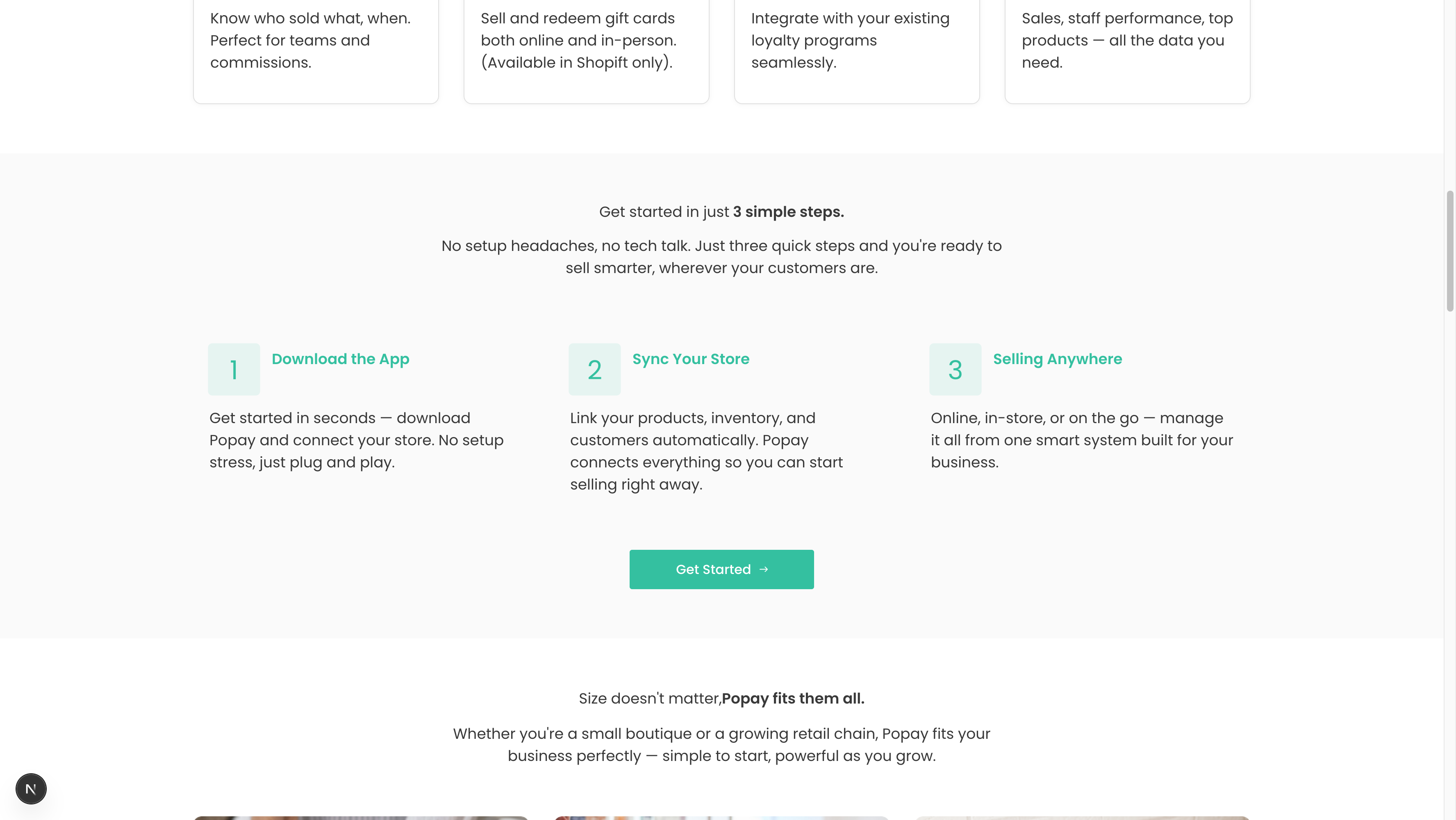
The finished Stepper Section showing your process
Overview
Use the Stepper Section to break down complex processes into simple, numbered steps. This helps users understand your workflow at a glance.
Key features:
- Section heading and description
- 3-5 numbered steps (recommended)
- Step number, title, and description for each
- Optional CTA button at the end
- Responsive mobile layout
Quick Setup
- Add Section: Pages → Your Page → Sections → Add "Stepper Section"
- Add Heading: "Get started in just 3 simple steps"
- Add Description: Brief intro to the process
- Add Steps: Click "Add" in Steps field (3-5 steps recommended)
- Configure CTA: Optional button at bottom
Step Configuration
For each step, configure:
Step Number
- Automatically numbered (1, 2, 3...)
- Displayed in a badge/circle
Step Title
- Examples: "Download the App", "Sync Your Store", "Start Selling"
- Keep it short: 2-4 words
- Use action verbs
Step Description
- Example: "Get started in seconds — download Popay and connect your store."
- 15-25 words ideal
- Focus on what the user does
- Explain the benefit/outcome
Best Practices
✅ DO:
- Use 3-4 steps (optimal for comprehension)
- Make steps actionable
- Use consistent verb tense
- Show the complete journey
- End with the desired outcome
❌ DON'T:
- Use more than 5 steps (too complex)
- Mix steps with different detail levels
- Skip the outcome/result
- Use vague language
Example
Heading: "Get started in just 3 simple steps"
Description: "No setup headaches, just three quick steps."

Steps:
1. Download the App
   "Get started in seconds — download and connect your store."

2. Sync Your Store
   "Link your products and inventory automatically."

3. Start Selling
   "Manage everything from one smart system."

CTA: "Get Started" → /signup
Schema Reference
File: sanity/schemas/sections/stepperSection.ts
Fields:
heading(required): Portable Textdescription: Portable Textsteps(array of objects):
- title (required): Portable Text
- description (required): Portable Text
ctaButton: Object with text and link
Need more details? Check Benefits Section for similar grid layouts.