

How to Create a Testimonials Section
A Testimonials Section displays customer reviews and social proof to build trust and credibility with potential customers.
What you'll create:
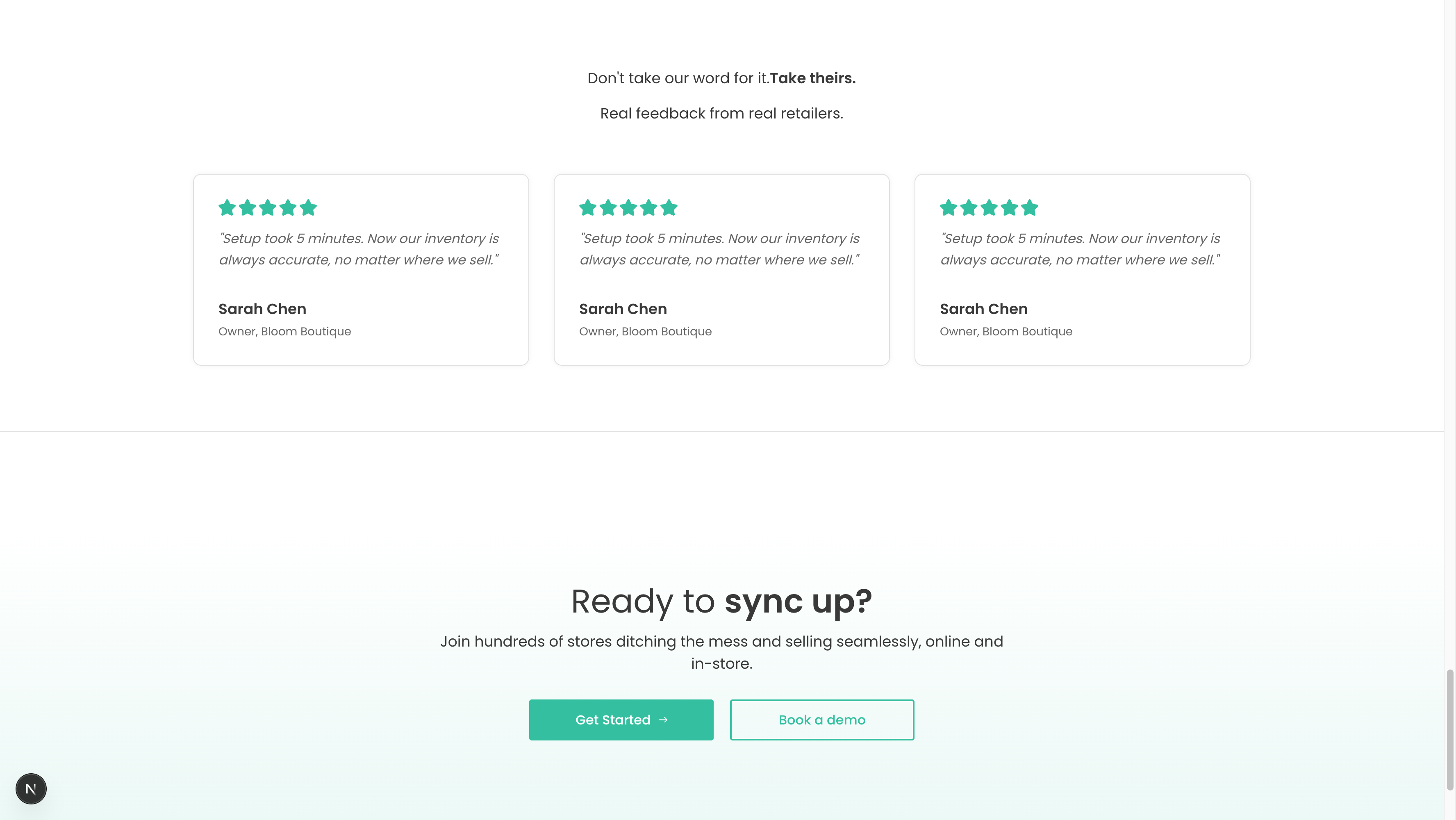
The finished Testimonials Section showing customer reviews
Overview
Testimonials are one of the most powerful trust-building elements on your website. This section displays customer quotes, names, roles, and optional ratings in an attractive carousel or grid layout.
Key features:
- Customer quotes and testimonials
- Name and role/company for each reviewer
- Optional star ratings
- Carousel or grid display
- Mobile-responsive design
- Pull from Sanity testimonial documents
Quick Setup
- Add Section: Pages → Your Page → Sections → Add "Testimonials Section"
- Add Heading: "Don't take our word for it. Take theirs."
- Add Description: Brief intro about customer feedback
- Select Testimonials: Choose from existing testimonial documents
- Configure Display: Choose layout and styling
Step 1: Create Testimonial Documents First
Before adding the section, create individual testimonial documents:
- Go to Content → Testimonials in Sanity Studio
- Click Create New Testimonial
- Fill in:
- Quote: The customer's testimonial text
- Name: Customer name
- Role: Their position/company
- Rating (optional): 1-5 stars
- Order: Display order (lower numbers first)
Repeat to create 3-6 testimonials.
Step 2: Configure Section Heading
- Click into "Heading" field
- Enter your heading:
- "What our customers say"
- "Don't take our word for it. Take theirs."
- "Trusted by thousands of businesses"
Best practices:
- Make it conversational
- Build credibility
- Keep it under 10 words
Step 3: Add Section Description
- Click into "Description" field
- Write 1-2 sentences:
- "Real feedback from real retailers."
- "See why businesses love our platform."
- "Join thousands of satisfied customers."
Step 4: Select Testimonials
- Click "Add" in the Testimonials field
- Select Existing: Choose from testimonial documents
- Add 3-6 testimonials for best results
- Order matters - they'll display in the order selected
Selection tips:
- Mix different industries/business types
- Include specific, detailed testimonials
- Show variety in benefits mentioned
- Use your strongest testimonials first
Step 5: Choose Layout (Optional)
If your schema supports layout options:
Carousel (Default)
- Shows one testimonial at a time
- Auto-rotates through testimonials
- Navigation dots/arrows
- Best for: 4+ testimonials
Grid
- Shows multiple testimonials at once
- Static display, no rotation
- 2-3 columns on desktop
- Best for: 3-4 strong testimonials
Writing Great Testimonials
DO Include:
✅ Specific results: "Increased sales by 40%"
✅ Before/after: "We used to struggle with... now we..."
✅ Emotional impact: "Game-changer", "Life-saver"
✅ Concrete details: Numbers, timeframes, specific features
✅ Full attribution: Real name, role, company
DON'T Include:
❌ Generic praise: "Great product!"
❌ Vague statements: "Really good service"
❌ Too long: Keep under 50 words
❌ Anonymous reviews: Always attribute
❌ Fake testimonials: Use only real feedback
Testimonial Best Practices
Length
- Ideal: 20-40 words
- Maximum: 60 words
- Too short: Under 15 words (not credible)
- Too long: Over 75 words (won't be read)
Content
- Focus on outcomes not features
- Include numbers when possible
- Mention specific use cases
- Address common objections
Variety
Mix different types:
- Results-focused: "Increased revenue by 50%"
- Ease-of-use: "Setup took 5 minutes"
- Support quality: "Support team was amazing"
- Time-saving: "Saves us 10 hours per week"
Example Configuration
Heading: "Don't take our word for it. Take theirs."
Description: "Real feedback from real retailers."

Testimonials (3 selected):

1. Quote: "Setup took 5 minutes. Now our inventory is always accurate, no matter where we sell."
   Name: "Sarah Chen"
   Role: "Owner, Bloom Boutique"
   Rating: 5 stars
   Order: 1

2. Quote: "We tried three other POS systems before Popay. This is the only one that just works."
   Name: "Marcus Rodriguez"
   Role: "Operations Manager, Urban Outpost"
   Rating: 5 stars
   Order: 2

3. Quote: "Cut our checkout time in half and customers love how fast it is."
   Name: "Jennifer Kim"
   Role: "Store Manager, Nest Home"
   Rating: 5 stars
   Order: 3

Layout: Carousel
Background: Light Gray
Advanced: Collecting Testimonials
How to Get Great Testimonials
1. Email after success:
Send to happy customers who've had positive results
2. Ask specific questions:
- What problem were you trying to solve?
- How has [product] helped your business?
- What specific results have you seen?
- What would you tell others considering [product]?
3. Interview customers:
Have a conversation, then edit for clarity
4. Use reviews:
Adapt existing reviews from other platforms
5. Video testimonials:
Even more powerful - capture on Zoom/phone
Getting Permission
Always:
- ✅ Get written permission to use testimonials
- ✅ Confirm spelling of name/company
- ✅ Allow them to review before publishing
- ✅ Offer to use first name only if preferred
Troubleshooting
No testimonials showing
Solution:
- Check testimonials are published (not drafts)
- Verify
isActiveor similar field is true - Ensure testimonials are selected in section
- Check order field is set
Testimonials look too long
Solution:
- Edit testimonial text to 40 words max
- Use ellipsis (...) for longer quotes
- Focus on most impactful part
- Create excerpt field if needed
Same testimonials on every page
Solution:
- This is okay! Consistency builds trust
- OR create different testimonial sets
- Filter by tags/categories if schema supports
Carousel not rotating
Solution:
- Check JavaScript is loaded
- Verify carousel library is installed
- Test in different browsers
- Check console for errors
Schema Reference
File: sanity/schemas/sections/testimonialsSection.ts
Section fields:
heading(required): Portable Textdescription: Portable Texttestimonials(required): Array of references to testimonial documentslayout: String (carousel, grid)backgroundColor: String
Testimonial document fields:
quote(required): Textname(required): Stringrole: Stringcompany: Stringrating: Number (1-5)image: Image (optional headshot)order: Number
Design Tips
Visual Hierarchy
- Make quote the focal point
- Name/role secondary in size
- Use quotation marks or styling
- Consider background cards
Trust Signals
- Include company logos if B2B
- Show star ratings visually
- Add customer photos if available
- Display company name/website
Mobile Optimization
- Single column on mobile
- Larger text for readability
- Easy-to-tap carousel controls
- Test swipe gestures
Related Sections
Combine Testimonials with:
- Hero Section: Add social proof near CTA
- Pricing Section: Overcome price objections
- Banner Section: End page with confidence
- Brands Section: Show logos of customers
Pro Tip: Place testimonials strategically throughout your site - not just on one page. Add them near conversion points like pricing tables, signup forms, and contact pages.